
Seller guide
How to run a raffle at your sale
Open your sale, tap Promote, then Create a raffle. Add a prize, pick who can enter, and tap Create raffle. Shoppers enter by scanning your QR sign. When you're ready, tap Pick raffle winners and spin the wheel — winners are emailed automatically.
1. Open your sale and tap Promote
Open the sale, tap Promote at the bottom, then tap Create a raffle in the Raffle section.
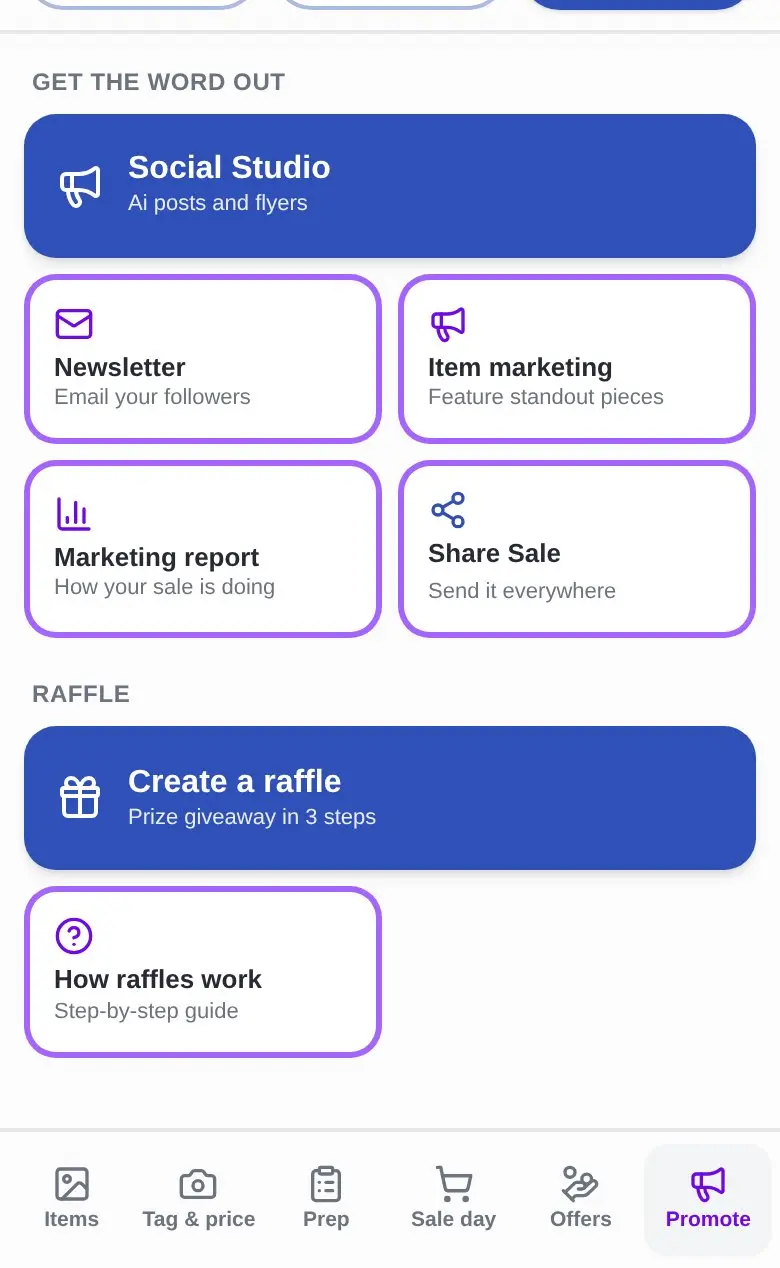
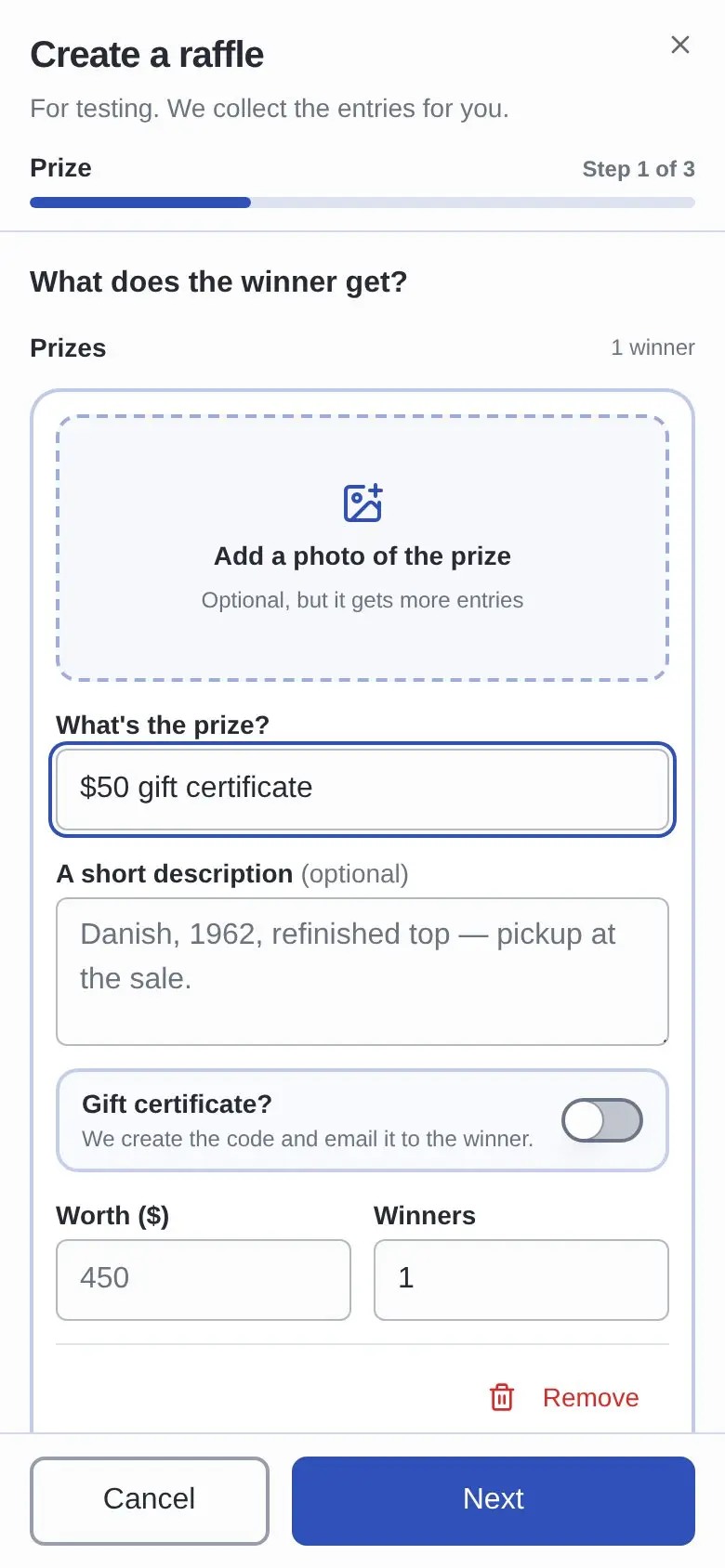
2. Step 1 — Add the prize
Tap Add a prize. Add a photo if you like — it gets more entries — then type what the winner gets and what it's worth, and set how many Winners it has. Giving a gift certificate? Turn on Gift certificate and we create the code and email it to the winner for you. More than one prize? Tap Add another prize and repeat.
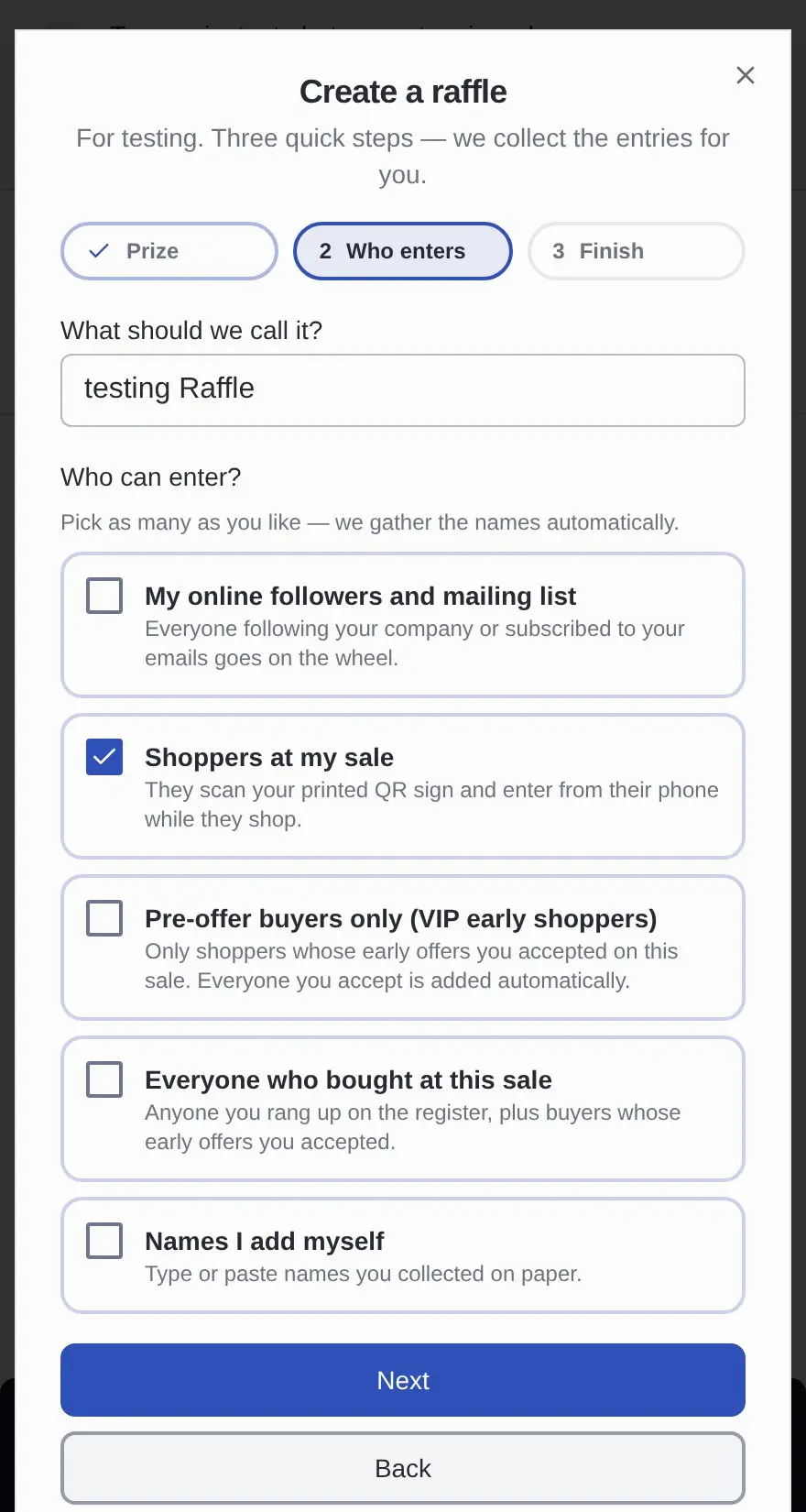
3. Step 2 — Choose who enters
The name is filled in for you. Shoppers at my sale is already checked, so people scan your printed QR sign and enter from their phone. Tap any other groups you want on the wheel — picked cards turn blue with a checkmark.
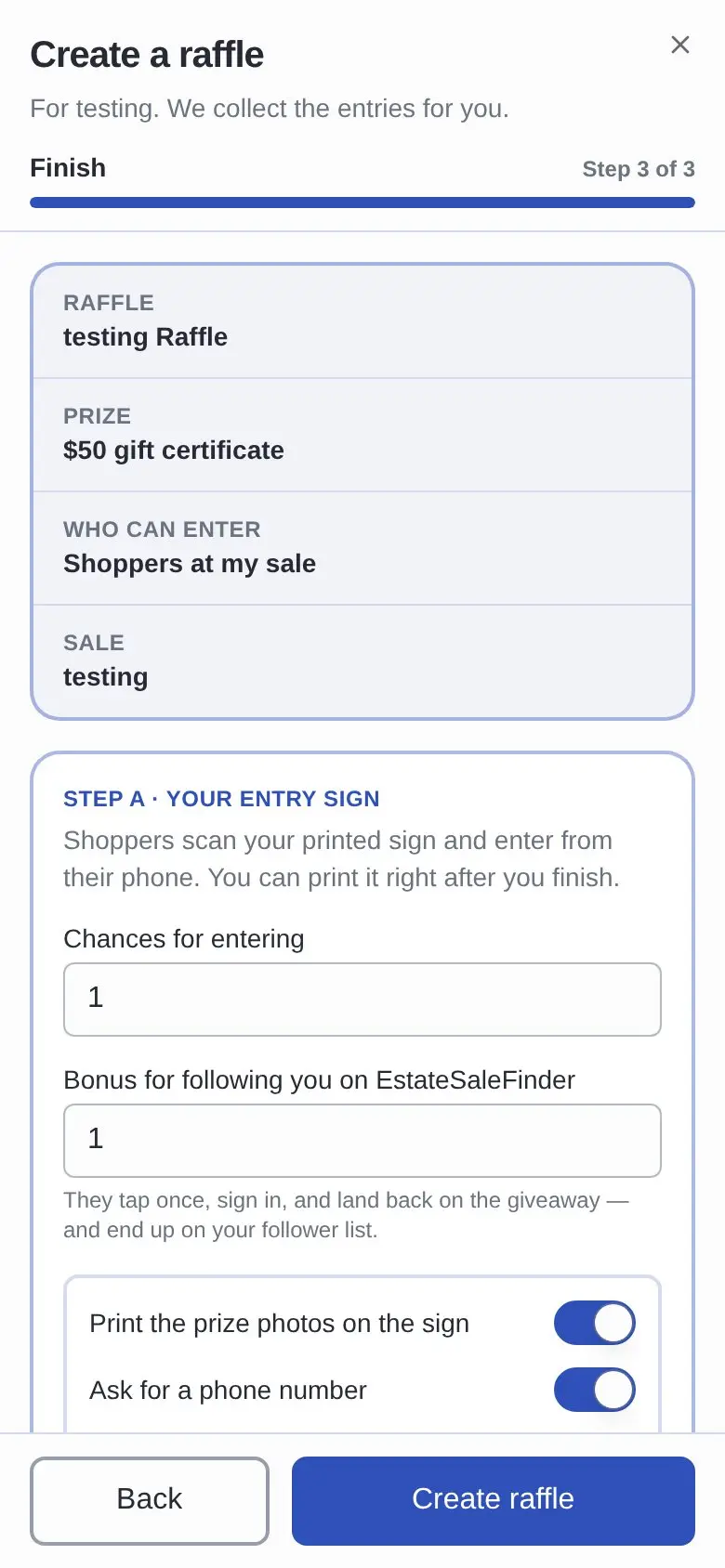
4. Step 3 — Finish
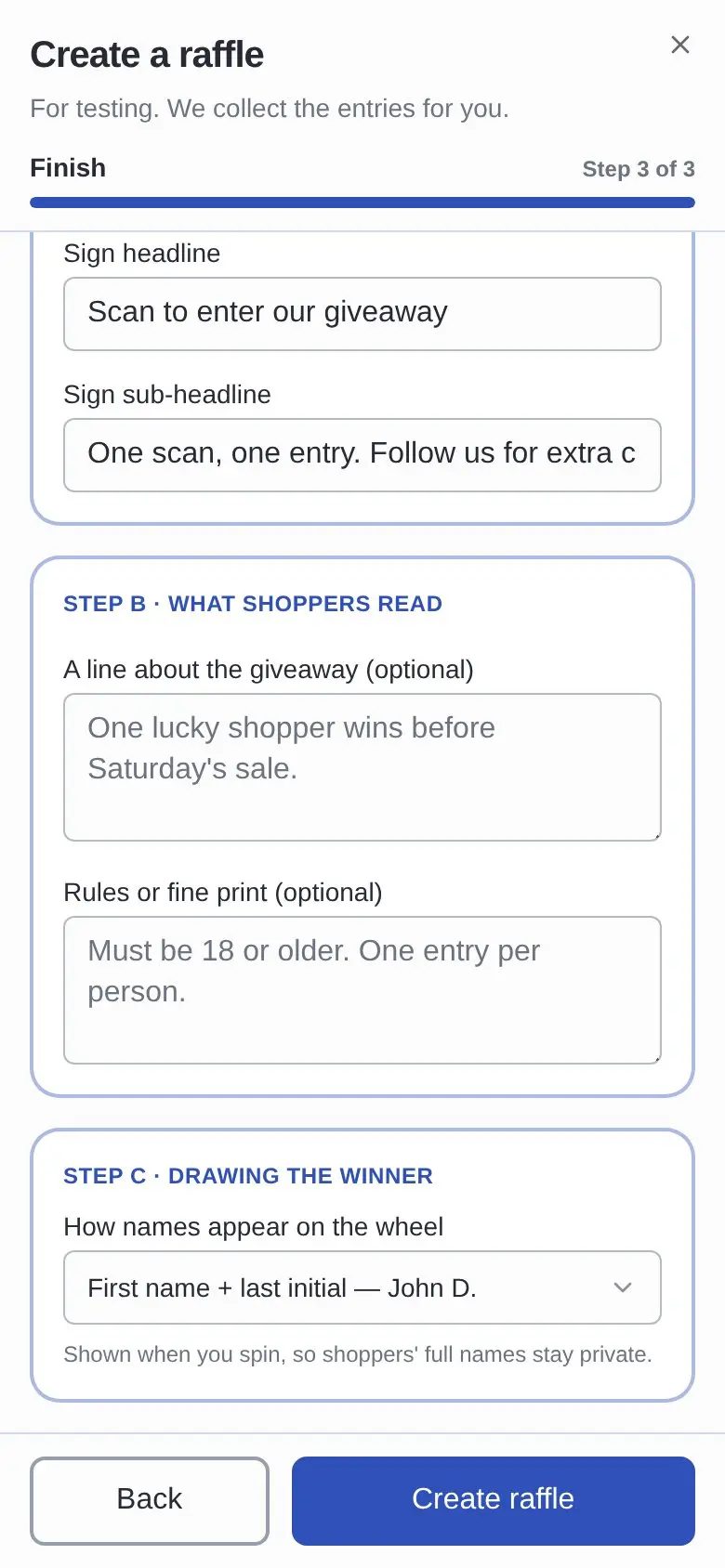
Check the summary at the top, then scroll through three short sections. Your entry sign: what your printed QR sign says, chances per entry, and a bonus for following you. What shoppers read: an optional line about the giveaway and any rules or fine print. Drawing the winner: how names appear on the wheel, so shoppers' full names stay private. Then tap Create raffle.
5. Print the sign and collect entries
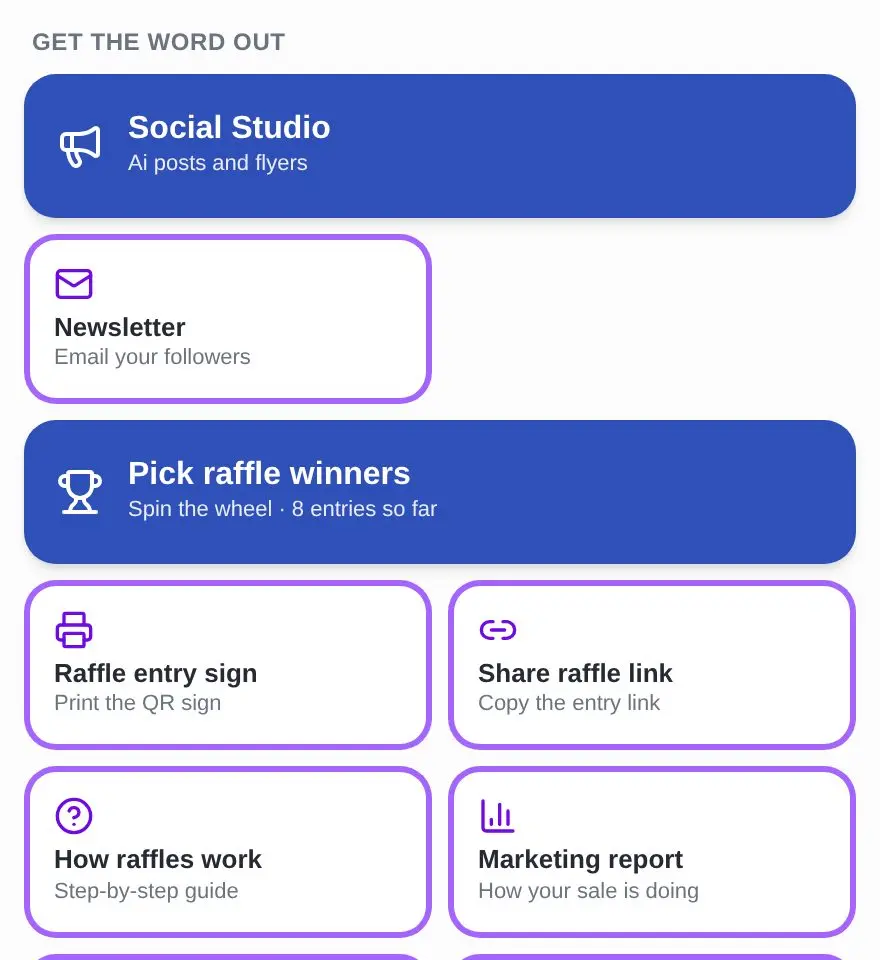
Back on Promote, tap Raffle entry sign to print the QR sign for your sale, or Share raffle link to post it online. The big button shows how many entries you have so far.
6. Tap Pick raffle winners
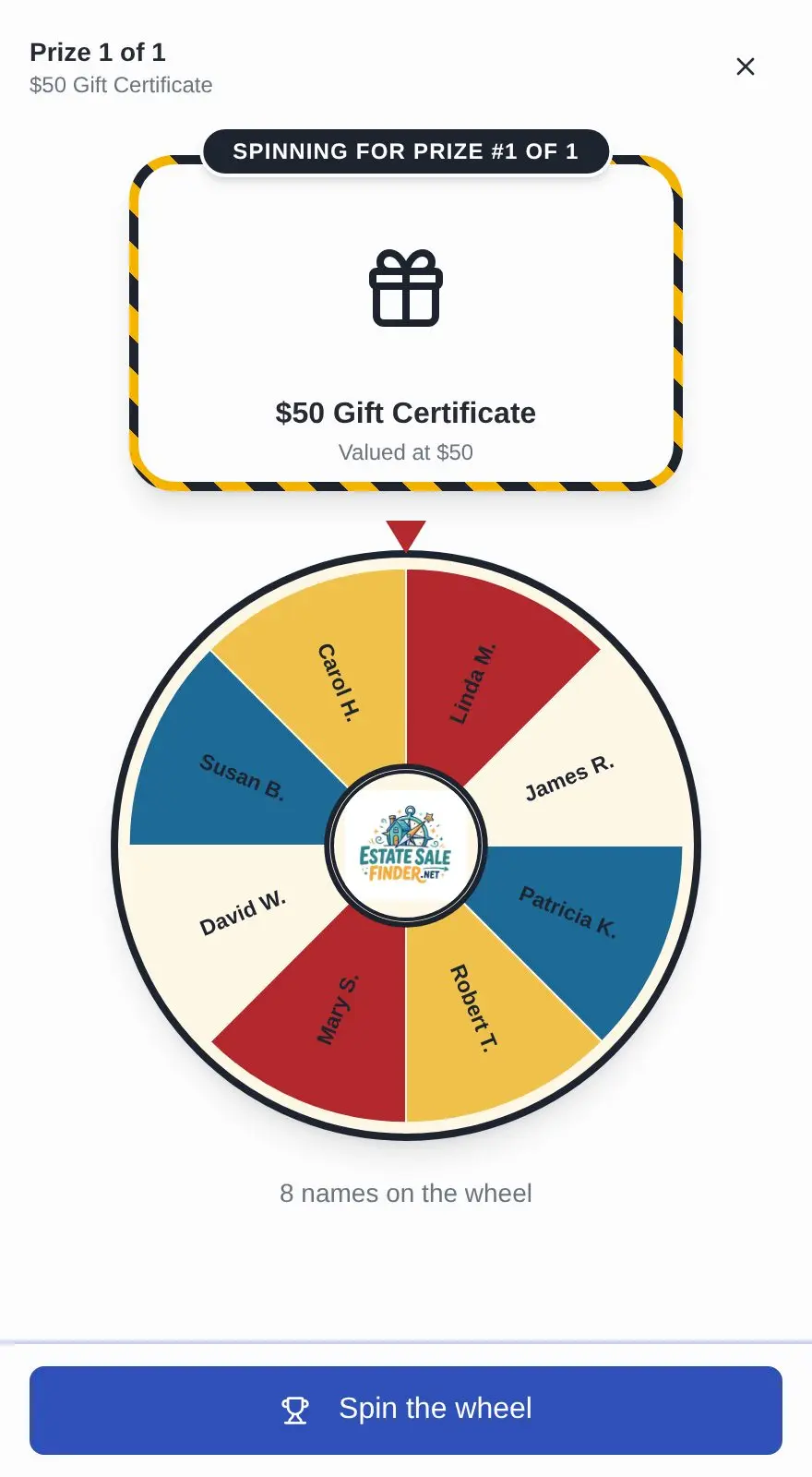
When you are ready, tap Pick raffle winners. The wheel opens with every entry on it. Tap Spin the wheel.
7. See your winner
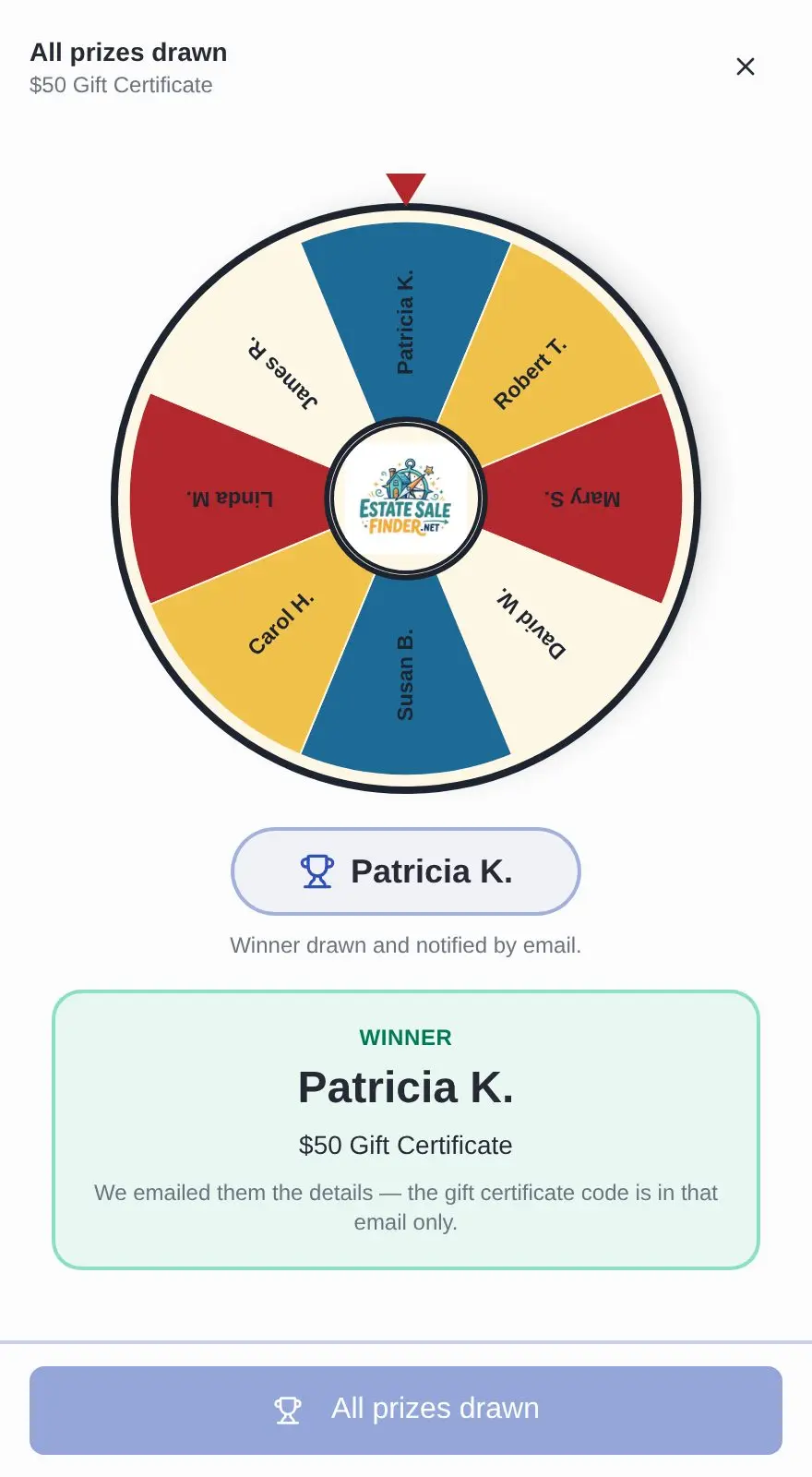
The wheel lands on the winner and we email them automatically. With more prizes, tap Spin again for the next one. The button changes to View raffle winners when every prize is drawn.
More help: Estate Sale Company Guide